
A fast product page is valuable. A fast store that remembers the wrong cart is a problem. WooCommerce caching needs a clear boundary between content that can be reused and information that belongs to one customer.
This guide explains that boundary and gives you a practical way to review your setup. It is written for business owners working with a developer or hosting team, rather than as a configuration recipe for a particular plugin.
Use caching selectively. Keep customer-specific shopping pages dynamic, check every cache layer, and verify the buying journey with separate visitor sessions before calling an optimization complete.
1. Understand which kind of caching you are changing
“Clear the cache” can mean several different things. WordPress documentation distinguishes page caching, browser caching, object caching, and server caching. Page caching reuses generated output; browser caching reuses resources on a visitor's device; object caching reuses data that would otherwise require more work to retrieve. These mechanisms operate at different levels. Read the WordPress caching overview.
My recommendation is to make a simple inventory before changing settings. List the optimization plugin, hosting cache, CDN, and any image or JavaScript optimization service. Assign each one an owner: you, your developer, or hosting support. If nobody knows which system controls a setting, ask first.
This inventory is especially useful after a migration. You may have disabled a WordPress plugin while the host still serves cached pages. Equally, a CDN purge will not necessarily clear a visitor's browser cache. A useful support question is: “Which layers can serve HTML on this domain, and where are their bypass rules configured?”
2. Separate public content from customer sessions
WooCommerce's official guidance says Cart, Checkout, and My Account should be excluded from page caching because their content is customer-specific. It also identifies session cookies such as woocommerce_items_in_cart, woocommerce_cart_hash, and wp_woocommerce_session_ as relevant to cache configuration. Exact handling depends on the cache provider. See WooCommerce's caching configuration guidance.
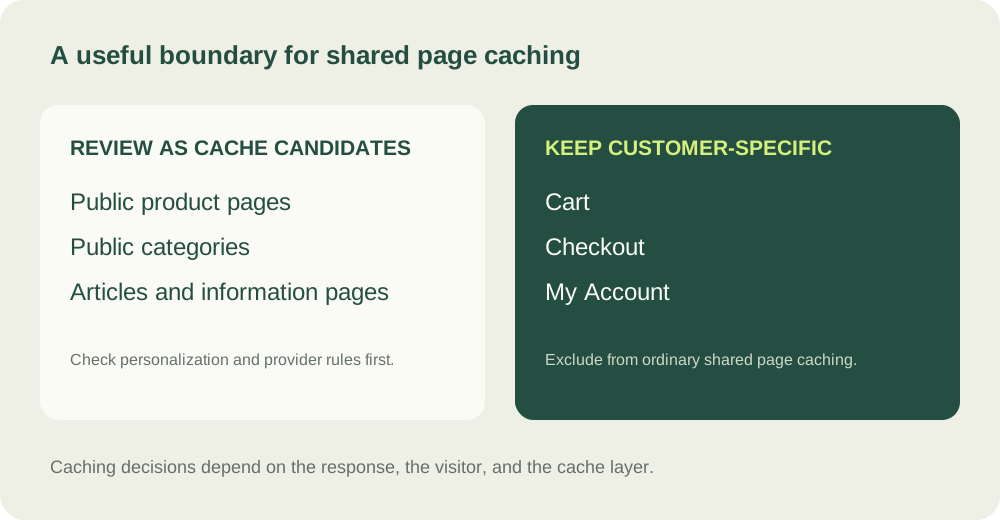
Do not assume every page outside checkout is identical for every visitor. A wholesale store may display customer-specific prices on product pages. A multilingual or multi-currency store may vary content by language or currency. These are reasons to review cache behavior with the provider, rather than applying an unrestricted “cache everything” rule.
The practical question is: would another visitor be allowed to see exactly this response? If the answer depends on who is signed in, their basket, their membership, or their location, document that dependency before deciding whether a shared response is appropriate.
3. Check the requests behind the page
A page can look normal while the request that updates its totals is failing. WooCommerce distinguishes classic checkout, which uses WooCommerce AJAX endpoints, from the Checkout block, which uses the Store API. Its troubleshooting guidance calls for passing these dynamic requests through cache and proxy layers without a stored response. Read the checkout loading troubleshooting guide.
Ask your developer to identify the checkout type and capture a failing request in the browser's Network panel. A spinner alone does not prove caching is responsible: an extension, security rule, external service, or server error can also interrupt the journey. This is why changing several performance options at once is difficult to diagnose.
For an efficient support handover, collect the action that caused the failure, the time, the affected browser, and the request status. Remove customer details, cookies, tokens, and credentials before sharing the evidence. A short, repeatable example is more useful than a large unfiltered log.
4. Use a small, repeatable test plan
The following is a suggested acceptance plan, not a claim that a particular plugin has been tested on your store. Start in a safe staging environment and use documented payment test modes. Check that staging cannot unintentionally trigger live fulfillment or customer emails.
| Scenario | Expected behavior to record |
|---|---|
| Fresh guest session | Add a product, change the quantity, and navigate away and back. The basket should reflect that visitor's actions. |
| Separate browser session | Open a genuinely separate session and compare its cart. It should not inherit the first visitor's basket or account details. |
| Shipping or coupon change | Use a supported destination or eligible coupon. Compare recalculated totals with your configured business rules. |
| Customer account | Sign in to a test account, check its own details, then sign out and verify that personal information is no longer displayed. |
| Content update | Edit a test product detail and follow the provider's purge process. Confirm when the updated content becomes visible to a new visitor. |
| Mobile checkout | Repeat the critical journey on a narrow screen and verify that controls, totals, and payment feedback remain usable. |
Keep the product, address, and expected totals consistent between test runs. Write “pass” or “fail” beside each scenario and record what changed. This makes it easier to compare a baseline with a new configuration and to explain a problem to support.
For the wider transaction checks, use my WooCommerce checkout testing checklist. Caching is one part of that process; payments, order confirmation, and integrations also need attention.
5. Improve one thing at a time
My suggested rollout is to capture a baseline, change one setting, clear the appropriate cache, and repeat the same tests. Keep a note of how to undo that setting. If a change makes the store less reliable, revert it and investigate before layering another optimization on top.
Separate the questions “Is it faster?” and “Does it behave correctly?” A performance report can help compare loading behavior, but it does not know whether your wholesale price, shipping rule, or customer-specific cart is correct. Define those acceptance criteria explicitly.
After applying the validated settings to production, repeat a controlled check and monitor incoming enquiries or reported checkout problems. Avoid promising a particular speed score or conversion improvement without measurements from the actual store.
Frequently asked questions
Should I turn off all caching for WooCommerce?
Not as a blanket policy. Public content and static resources can benefit from appropriately configured caching. The goal is to choose the right boundaries and verify the store's personalized behavior.
Does purging the cache permanently fix a broken cart?
A purge may temporarily remove a stale response. If the same incorrect response can be cached again, the underlying rule still needs attention. Confirm the relevant exclusions and repeat the scenario after the cache has warmed.
Can I use a universal configuration snippet?
Treat generic snippets as starting points for review. Your host, CDN, checkout type, custom page slugs, and personalization rules affect what is appropriate. Ask the responsible provider to confirm supported settings.
What should I send to a developer?
Share the affected URL, reproducible steps, cache-layer inventory, recent changes, and redacted diagnostic evidence. Explain whether the issue affects guests, signed-in customers, or both.
I build and troubleshoot WooCommerce stores, checkout flows, and custom integrations. Describe your issue using the contact form →
Sources and review date
Researched and reviewed on 24 October 2026. Official documentation supports the technical explanations; the inventory, acceptance plan, and rollout advice are practical recommendations. Images are explanatory illustrations, not screenshots or performance results from a client store.