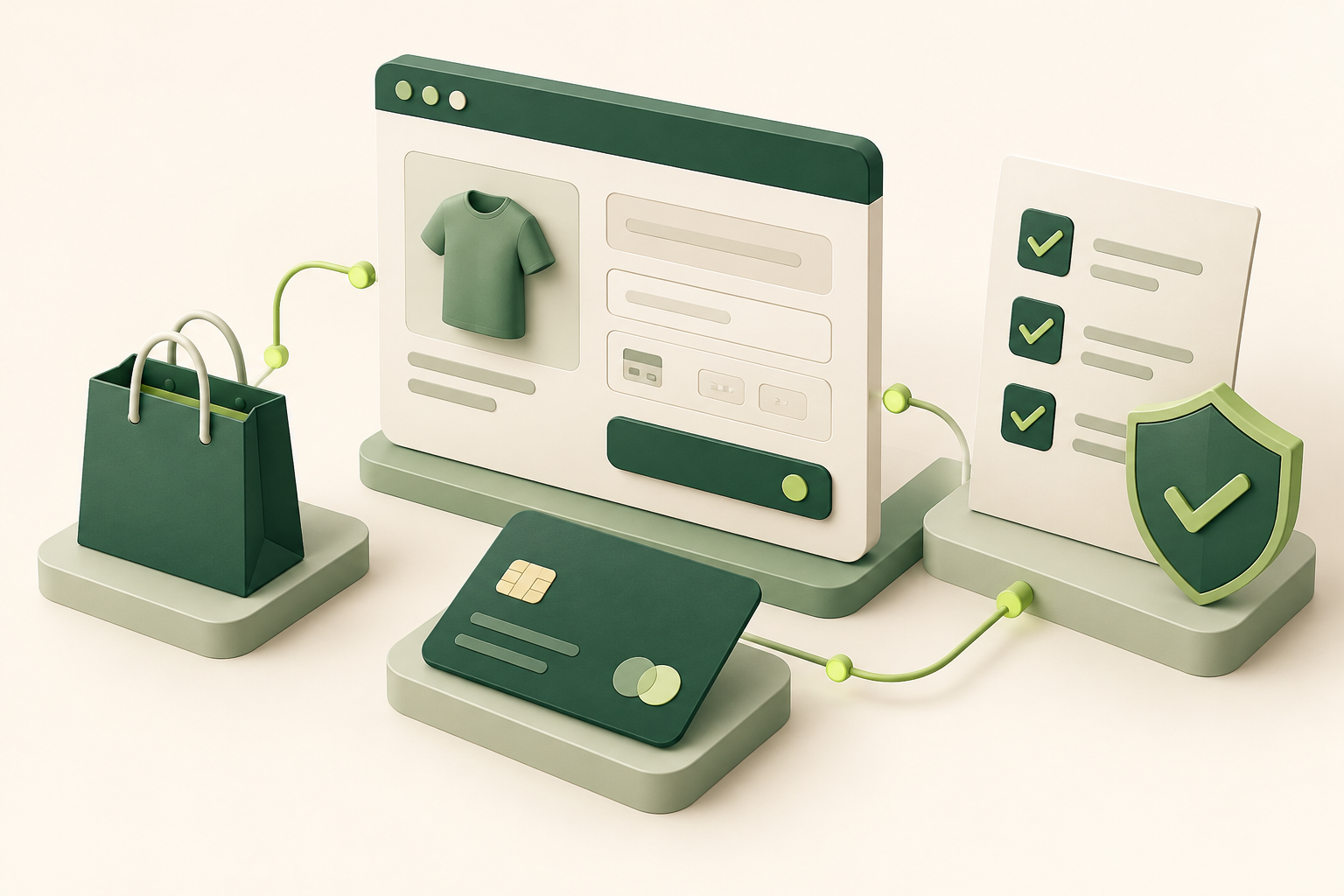
An update can finish successfully while a customer's buying journey still fails. Before changing a WooCommerce store, test the complete path from choosing a product to receiving the order confirmation.
Prepare a recoverable backup, test the exact update set on staging, then check the buying journey again after deployment. A green update notification is only the beginning.
1. Prepare a recovery plan before touching checkout
Start by recording what is installed: WordPress, WooCommerce, the theme, payment extensions, and any custom checkout code. Note which versions you intend to change. This turns a vague maintenance task into a repeatable plan.
WordPress documentation explains that a complete backup needs both files and a database. Keep a matched backup set and confirm how you would restore it before starting. See the WordPress backup guide.
My practical recommendation: write down who can restore the site, where the backup lives, and what happens to orders placed after that backup. On an active store, restoring an older database can remove newer order records. Agree on a recovery approach that accounts for incoming orders rather than assuming every rollback is harmless.
2. Give staging a realistic job to do
WooCommerce recommends testing updates on staging before applying them to the live store. Use the same planned combination of WooCommerce, theme, gateway, and extension versions. Read the official update workflow.
For the following checklist, use isolated test data and the gateway's documented sandbox or test environment. Prevent staging from sending real customer emails or triggering live fulfillment. Check the extension's own instructions before configuring it; payment methods differ.
A useful test product should resemble what customers actually buy. If your store sells variable products, subscriptions, bundles, or wholesale packs, a simple product test alone leaves important gaps.
3. Walk through the checkout as a customer
The table below is a suggested acceptance checklist. Adapt it to the payment methods, markets, and product types your store actually supports.
| Test | What to verify |
|---|---|
| Product and cart | Choose a variation, change quantity, remove an item, and return to checkout. Confirm the cart contents stay correct. |
| Discounts | Try a valid coupon and an invalid one. Check eligibility, totals, and the clarity of the message. |
| Shipping and taxes | Use representative delivery addresses. Compare the displayed amounts with your configured business rules. |
| Successful payment | Use the provider's test procedure. Confirm that one intended order is created and its payment reference matches. |
| Failed or cancelled payment | Follow the provider's documented failure tests. Check that the customer can understand the result and retry appropriately. |
| Confirmation and emails | Check the thank-you page, order details, recipient, totals, and customer instructions. |
| Mobile purchase | Repeat the journey on a narrow screen. Check address entry, validation messages, payment controls, and the final button. |
| Connected services | If applicable, verify the intended handoff to fulfillment, course access, or another connected system in its test environment. |
Record the expected result beside the actual result. “Checkout works” is hard to investigate later. “Guest checkout with product A and delivery zone B creates one paid test order” is specific enough to repeat.
4. When a test fails, narrow the problem
My suggested approach is to start with the first incorrect step. Did the cart total change before payment? Did the payment succeed while the order remained unpaid? Did the order look correct while the customer received no email? These are different failure points and deserve different investigations.
Keep a short record of the test time, order number, browser, relevant versions, and visible error. Share redacted logs with your developer or extension support. Avoid posting payment secrets, customer addresses, or full debug output publicly.
Once a fix is applied, repeat the failed case and one neighboring case. For example, after repairing a shipping issue, test another supported destination as well. This is a practical way to check that the fix fits the broader buying flow.
5. Recheck the live store after the update
WooCommerce's update guidance includes checking the store after maintenance. Apply the combination you validated, finish any required database update, and verify the critical storefront flows again.
For live payment verification, agree on a controlled procedure with the store owner and payment provider. Never assume test credentials belong on a live checkout. Monitor the first real orders for the expected status, confirmation, and downstream handoff.
Common questions
Is checking the homepage enough?
No. A working homepage does not demonstrate that a variation, shipping calculation, payment, or order email behaves correctly. Test the transaction itself.
Should every plugin update use the same checklist?
Use a risk-based scope. A payment or checkout change deserves deeper transaction testing. Keep a short core buying-flow check for other changes, then add tests for the affected feature.
Can I copy the staging database over my live store?
Do not treat that as a routine deployment step for an active shop. It can replace newer live orders and customer data. Plan how code, settings, and live transactional data will be handled separately.
I help businesses troubleshoot WooCommerce payments, custom checkout flows, and integrations. Tell me what is getting in the way →
Sources and editorial note
Researched on 23 October 2026. The official references support backup and update guidance; the test matrix and diagnostic workflow are practical recommendations. This article does not claim a specific store audit or measured performance result.